📄 Working with content

When you create a project or any other type of page on District Engage, you can add an image gallery to display multiple images organised in a visually appealing and structured manner.
There are two types of image gallery you can create:
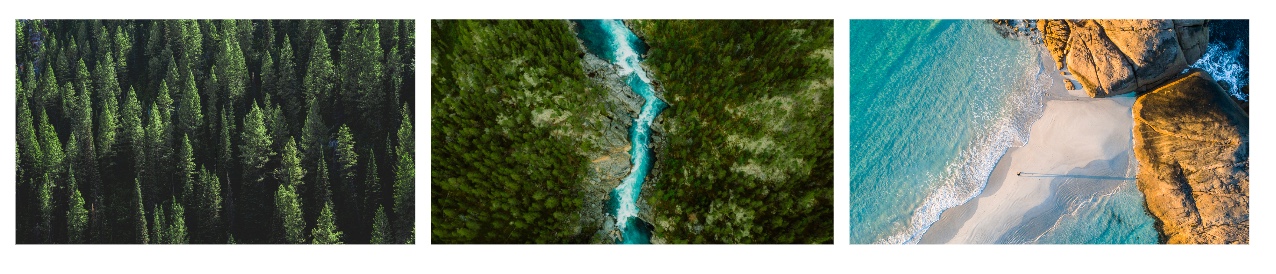
- Thumbnail gallery
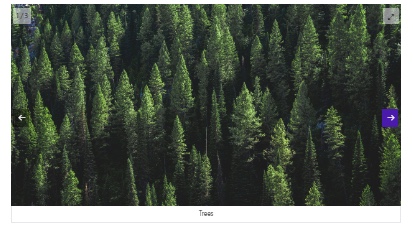
- Carousel slideshow
How to create a Thumbnail gallery
- Navigate to the page where you want to add an image gallery.
- Click Edit. The Edit page will now open.
- Click on Add block at the bottom of the page. In the dropdown, select the Image gallery block type.
- Enter a Title for your image gallery.
- In the Display as field, select Thumbnail gallery.
- In the Display ratio field, select either 16:9 or 4:3. This ratio determines how the images are displayed in the gallery.
- Click Add images and upload your files.
-
For each image you add, complete the following fields:
- Image (required)
- Alt text (required): Describes the appearance or function of the image. This is read by screen readers, displays if the image fails to load, and is indexed by search engines.
- Caption: Optional text displayed under the image (max. 200 characters).
- Click Add Image gallery.
- Click Publish to make the gallery live.
How to create a Carousel slideshow
Watch: How to create a slideshow carousel
To create an image carousel:
- Navigate to the page where you want to add an image carousel.
- Click Edit. The Edit page will now open.
- Click on Add block at the bottom of the page. In the dropdown, select the Image gallery block type.
- Enter a Title for your image carousel.
- In the Display as field, select Carousel slideshow.
- In the Display ratio field, select either 16:9 or 4:3. This ratio determines how the images are displayed in the gallery.
- Click Add images and upload your files.
-
For each image you add, complete the following fields:
- Image (required)
- Alt text (required)
- Caption (optional, max. 200 characters)
- Click Add Image gallery.
- Click Publish to make the gallery live.
Instructions for optimal image display
| Item | Description |
|---|---|
| Supported file types | jpeg, jpg, png |
| Max. file upload size | 20 MB |
| Max. dimensions |
Images larger than 5000px × 5000px are automatically resized.
Recommended maximum: 5000px width, 5000px height. |
| Recommended aspect ratio | Any ratio can be uploaded. In the gallery, images are fitted to the selected ratio (4:3 or 16:9). Clicking an image opens it in a lightbox with its original ratio. |


